
Bali field guide
How to Use the Traceby Fuel Map in Bali
Find nearby petrol, filter by fuel type and queue, include Pertamini sellers, and judge how fresh a station report is before you ride or drive there.
Published 2026-10-15
The useful part, first
A useful station choice combines the correct fuel, a recent availability report and a queue your remaining range can tolerate.
In this guide
01
Start with the fuel in your vehicle
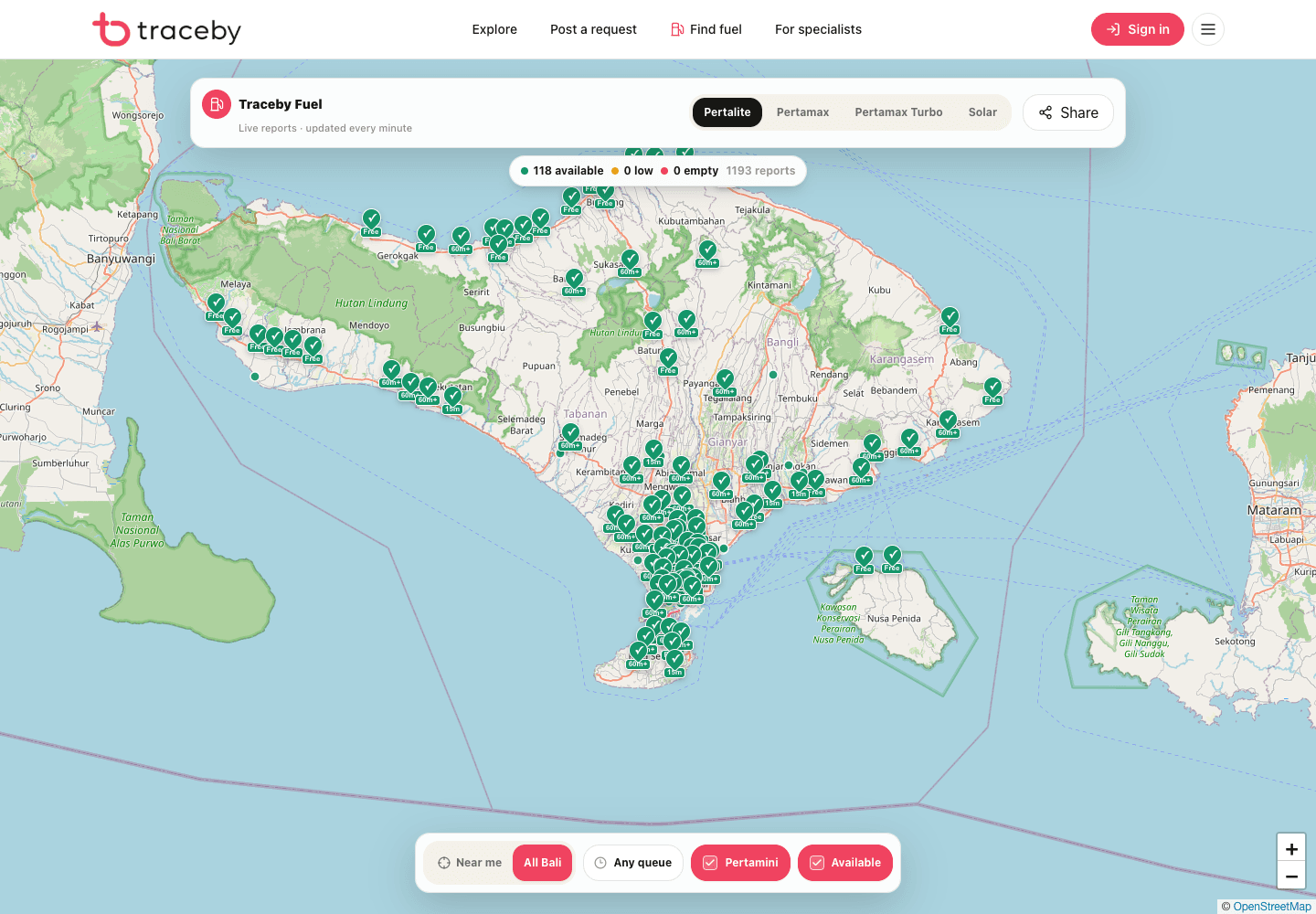
Open Traceby Fuel and select Pertalite, Pertamax, Pertamax Turbo or Solar at the top. The map changes with that choice; a station that has one product may not have the one your vehicle needs.
If you are unsure which grade to use, check the rental agreement, fuel-door label or owner's manual. A green marker is not a reason to substitute a fuel your vehicle is not designed to take.
02
Choose Near me or scan all Bali
Near me asks the browser for your location and centres the search around you. Allow location access only while using the map. All Bali is better when you are planning tomorrow's route or checking conditions near your destination.
Location is a starting point, not an instruction to take the closest road blindly. Compare the station with your direction of travel and remaining range before moving.
03
Use Available and queue together
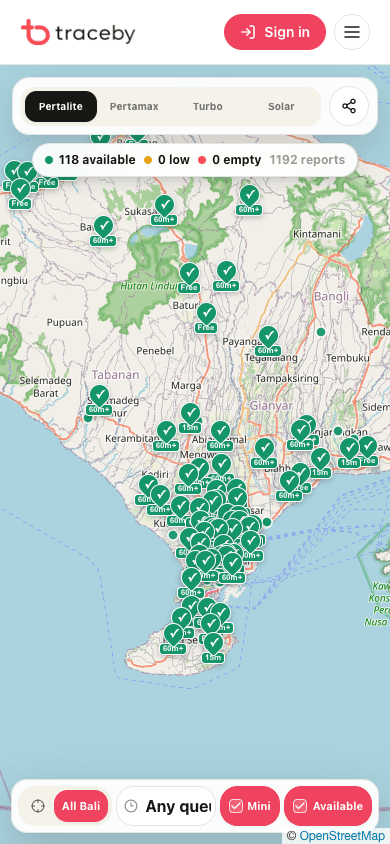
Available removes stations currently reported as low, empty or unknown. The queue filter then lets you avoid a station whose fuel is technically available but whose wait would make it a poor choice.
On the marker, Free means no reported wait; 15m, 30m and 60m+ are approximate queue bands. They are community observations, not reservations. Open the station card and check how recently it was updated.
04
Include Mini when the main stations are crowded
Mini adds Pertamini and other small community fuel sellers. They often have no formal queue, so their markers do not show waiting time. Available still applies: turning both filters on shows only small sellers currently reported to have fuel.
Before filling, confirm the fuel grade and price. Small sellers are a fallback, not proof that every container holds the grade shown on the sign. If anything is unclear, use another point.
05
Open the marker before you leave
Tap a marker once to open its station card. Read availability, queue and the last update. If you are physically there, use the update control to confirm or correct the report for the next person.
A useful decision has three checks: the correct fuel grade, a recent availability report and a queue your remaining range can tolerate. If one is missing, keep a second station on the route.
06
Share the useful state, not just the homepage
Use Share after setting the useful view, then tell the recipient which fuel and area you checked. A link without that context can be misunderstood after the map changes.
Reports become more valuable when people update the station they actually visited. Never mark a location from hearsay; availability can change between the message you received and the moment you open the map.
Before you go
Your checklist
Tick off what you have checked. Progress stays in this browser.
0/5 checked